← Browse all toolsSVG Optimizer

SVG Optimizer

Optimize

Shrink SVG files by removing metadata, comments, and hidden elements. SVGO-powered, runs entirely in your browser.

Loading...

Page context

Where SVG Optimizer fits

SVG Optimizer shrinks SVG files with the SVGO engine while showing what changed, so you can cut file size without breaking rendering, accessibility, or animation hooks.

Related guides

What gets removed first

Editor metadata, comments, hidden and empty elements, redundant group nesting, default attribute values, and excess decimal precision account for most of the waste in designer-exported SVG. Removing them rarely changes rendering.

Safe defaults versus aggressive passes

The default preset strips known-safe waste. Stronger options merge paths, collapse groups, and rewrite presentation attributes to styles. Those save more bytes but can affect clipping, masks, and CSS selectors, so review the result after each step.
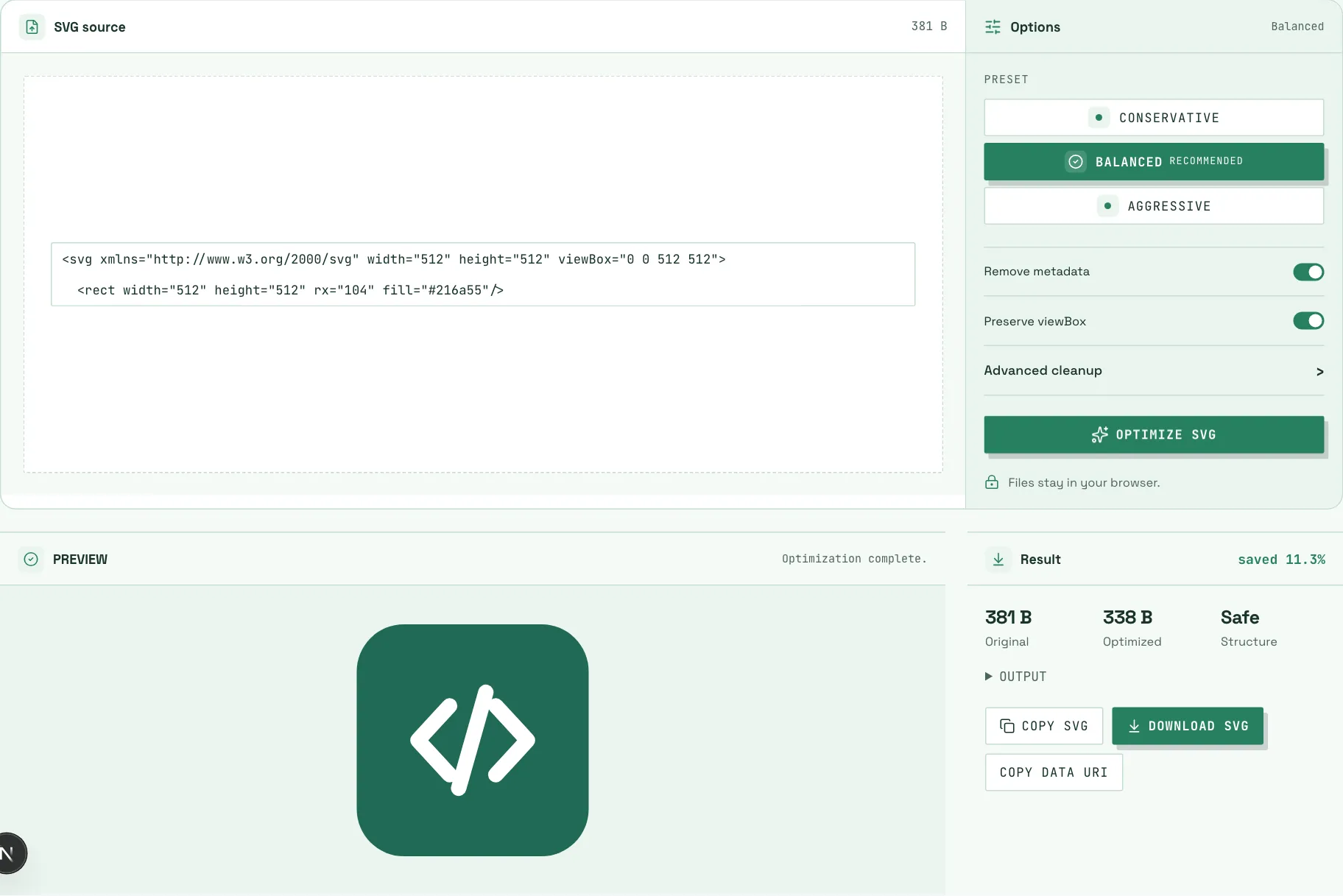
The SVG Optimizer with an icon pasted in, showing the optimization report and the cleaned SVG output next to the original size.
The optimizer at work: SVGO with safe defaults, a byte-delta report, and the optimized markup ready to copy.

How to verify nothing broke

Render the original and optimized files side by side at small and large sizes, and check IDs referenced by CSS or scripts, gradients, filters, masks, and animation targets before shipping. The tool reports the byte delta so the trade is explicit.

When not to over-optimize

Interactive SVG that depends on scripts or event handlers, animation that targets specific IDs, and files consumed through <use> references deserve conservative settings. A few hundred bytes is rarely worth a broken hook.

What gets removed

Editor metadata, comments, empty and hidden elements, redundant group nesting, default attribute values, and excess decimal precision make up most SVG waste. These are the first targets because removing them rarely changes rendering.

Safety defaults

Rendering-safe options come first: the viewBox, referenced IDs, gradients, filters, and masks survive, while active content such as scripts is removed. Stronger passes exist but deserve a visual check.

How to use

  1. Add SVG. Paste markup or drop a file into the optimizer.
  2. Choose a preset. Start with safe defaults; enable stronger passes only when needed.
  3. Review the diff. Check the byte delta and preview the optimized rendering.
  4. Download. Save the optimized SVG or copy the source.

Frequently asked questions

Is SVGO safe for production SVGs?
With safe defaults, yes. It removes waste that does not affect rendering; aggressive options deserve a visual check.
Will optimization change how my SVG looks?
Safe passes should render identically. Path merging and style rewriting can subtly change edges, so compare renders for important artwork.
Can optimization break CSS or animation?
It can if it merges or renames IDs that CSS selectors or animation targets reference. Review the diff and test in context.
Does it remove scripts?
Yes. Active content is removed by default, which is also a security improvement for untrusted files.
How much smaller will my file get?
Editor-exported files commonly shrink 20-60%. Hand-written or already-optimized files shrink less.
Does it upload my SVG?
No. Optimization runs entirely in your browser with the SVGO engine.
Optimizer or Minifier?
Optimizer exposes options and byte comparisons; Minifier is a one-click pass with the same SVGO engine and safe defaults.
Is SVG Optimizer free?
Yes. SVGKit tools are free to use with no account required.