Image to SVG

Convert

Convert PNG, JPG, WEBP, GIF, BMP, or AVIF images into editable SVG paths. Batch conversion with adjustable tracing, runs entirely in your browser.

Loading...

Page context

Where Image to SVG fits

Image to SVG converts PNG, JPG, WEBP, GIF, BMP, or AVIF images into editable SVG paths in your browser, with batch upload and adjustable tracing.

Related guides

One entry for every image format

Drop up to ten images in any mix of PNG, JPG, WEBP, GIF, BMP, or AVIF. Each image is decoded locally, analyzed for content type, traced with the VTracer engine, and added to a downloadable batch queue.

Which images convert best

Flat logos, icons, stickers, and line art convert cleanly: few colors and hard edges map naturally to vector paths. Photos trace into a posterized look that works for stylized art but not for faithful reproduction.

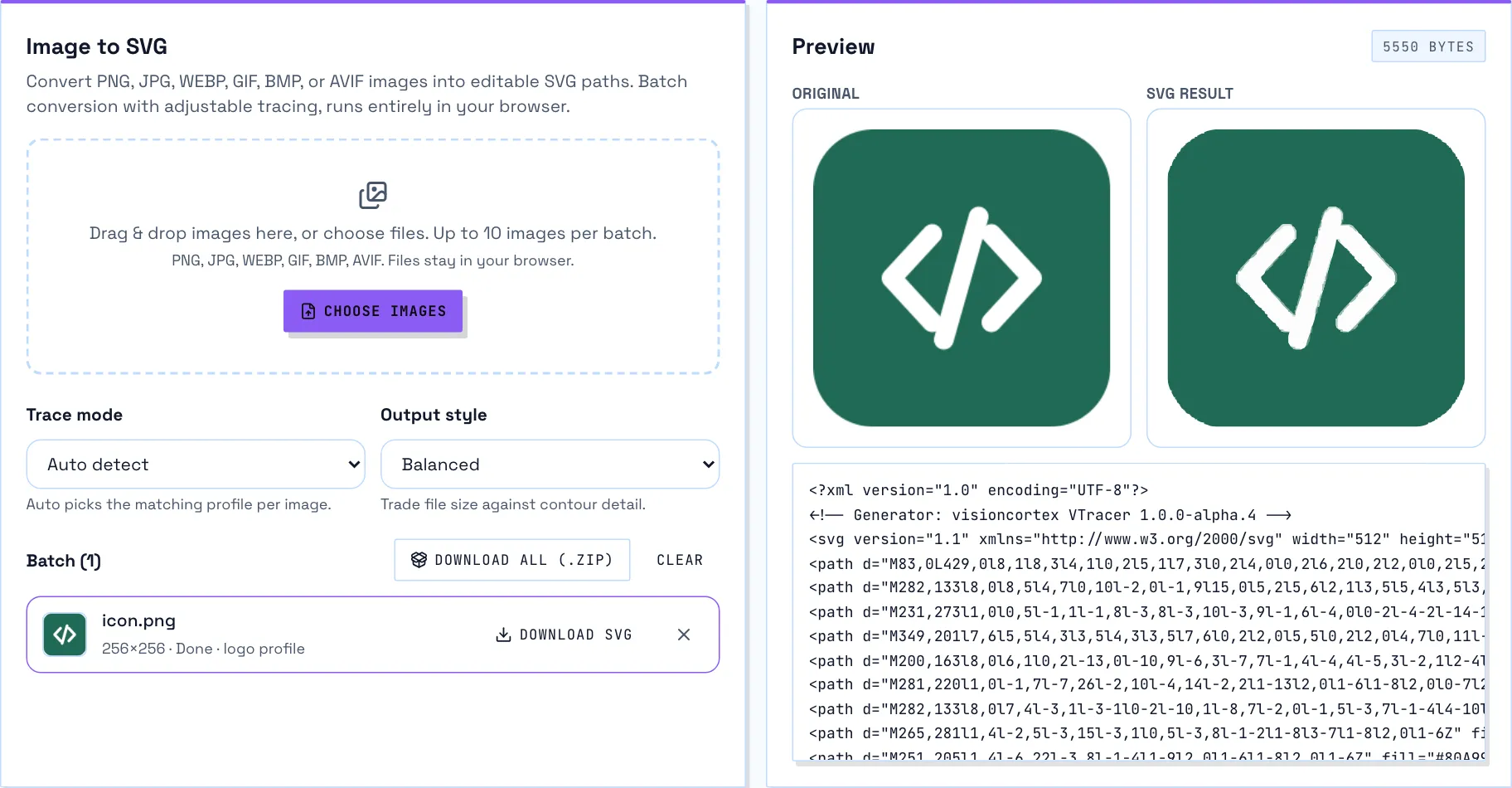
The Image to SVG tool with a 256px PNG icon uploaded, traced with the logo profile, showing the original and traced SVG side by side.
A real conversion: the 256px icon decoded locally, traced with the auto-detected logo profile, and previewed next to the source.

When not to trace

Do not trace photographs you need photorealistically, or images with soft gradients and fine texture — the SVG grows large while looking worse than the bitmap. For those, keep the raster and export responsive sizes instead.

How the tracing works

The tool auto-detects the content type (logo, photo, black & white, line art), upscales small sources so contours stay smooth, clusters colors, and fits polygons to each region with corner detection. Mode and output style re-trace the decoded image without re-uploading.

Understanding the output

Every path is an editable filled polygon, so results open cleanly in Illustrator, Figma, and Inkscape. Transparent areas stay transparent, and the file carries a viewBox so it scales responsively.

How the conversion works

Image to SVG parses the input in your browser, applies the target format's rules, and produces standards-based output without a server round-trip. The page shows the result before you commit to it.
How to use

  1. Drop images. Drag up to ten images onto the drop zone or pick them from your device.
  2. Pick a mode. Leave Trace mode on Auto, or force Color, Black & white, or Line art for known content.
  3. Tune and review. Choose an output style and compare the original image with the traced SVG preview.
  4. Download. Save each SVG individually or grab the whole batch as a ZIP archive.

Frequently asked questions

Which image formats can I convert?
PNG, JPG, WEBP, GIF, BMP, and AVIF files decode directly in the browser and trace into SVG paths.
Can I convert several images at once?
Yes. Drop up to ten images per batch, then download each SVG or all of them in one ZIP archive.
Where does conversion run?
Decoding and tracing run entirely in your browser; no file is ever uploaded.
What does Auto detect do?
It classifies each image as logo, photo, black & white, or line art and picks the tracing profile that suits that content.
Why does my photo look posterized?
Tracing approximates continuous gradients with layered flat fills. Photos work best as stylized poster art; keep photorealistic images as bitmaps.
Which output style should I choose?
Balanced suits most images, Smallest file favors compact icons, and High detail keeps more contours at the cost of size.
Are the results editable in design tools?
Yes. The output is plain filled SVG paths that open in Illustrator, Figma, and Inkscape.
Is Image to SVG free?
Yes. SVGKit tools are free to use with no account required.